
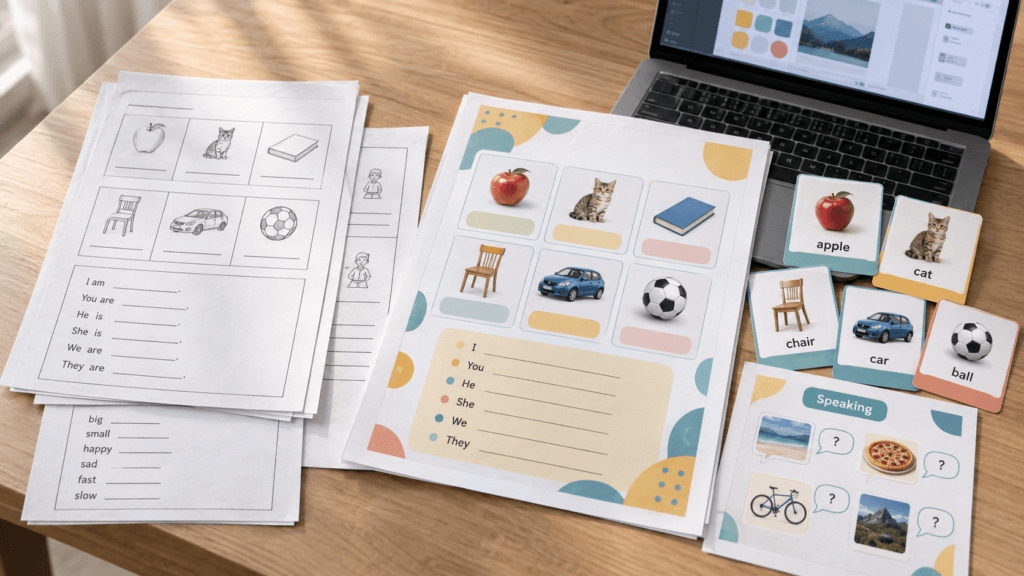
AI can generate a worksheet in seconds. That does not mean the worksheet is ready for a real classroom.
The first draft may contain too much text, unclear instructions, random vocabulary, or a layout that looks busy instead of helpful. Even when the content is accurate, it can still feel like a generic handout that no teacher would be excited to print or share.
The solution is not to ask AI to become the teacher and the designer at the same time. A better approach is to divide the work clearly: the teacher makes the instructional and visual decisions, while AI helps with drafting, variations, editing, and repetitive production.
This guide shows you how to create ESL teaching materials with AI while keeping the final resource practical, attractive, and genuinely teacher-led.
Start With the Classroom Job, Not the Tool
Before opening ChatGPT, Canva, or another tool, decide exactly what the material needs to do.
A useful resource begins with five simple questions:
- Who are the learners?
- What is their approximate English level?
- What should they understand or produce?
- How will the teacher use the page?
- How long should the activity take?
For example, “make a worksheet about jobs” is too broad. A more useful brief would be:
Create a 15-minute speaking worksheet for A1 learners aged 7–9. Students should learn six common job words and ask, “What do you want to be?” The page will be used in pairs after a short vocabulary presentation.
This brief gives the material a classroom purpose. It also prevents AI from filling the page with activities that do not belong together.
If you are planning several lessons, define the progression before designing individual pages. Our guide to building an ESL curriculum with free AI tools explains how to organize goals and lessons across a longer unit.
Give AI a Small, Well-Defined Role
AI is most useful when the task is constrained. Instead of asking for a complete printable resource in one step, use it for separate jobs such as:
- generating age-appropriate example sentences;
- creating controlled vocabulary lists;
- suggesting practice variations;
- simplifying instructions;
- checking whether an activity matches the target level;
- producing an answer key;
- finding accidental repetition or inconsistent wording.
The teacher should still decide the learning objective, vocabulary load, activity order, and final wording. AI does not know your students, the pace of your class, or which instructions are likely to confuse them.
Here is a prompt you can adapt:
You are helping me draft content for an ESL classroom resource. The learners are aged 7–9 and working at CEFR A1 level. The topic is jobs and workplaces. The language target is “He/She is a…” and “Where does a ___ work?” Use only these eight job words: teacher, doctor, nurse, chef, farmer, firefighter, police officer, and driver. Create: 1) a short matching task, 2) six gap-fill sentences, 3) four pair-work questions, and 4) a concise answer key. Keep instructions under 12 words. Do not design the page or add extra vocabulary.
Notice what the prompt does not ask AI to do. It does not ask for colors, illustrations, page layout, or a finished PDF. Those choices belong to the design stage.
ChatGPT can help draft, rewrite, summarize, analyze uploaded content, and generate creative suggestions. The exact features available can depend on your plan and settings, so it is best treated as a flexible drafting assistant rather than an automatic publishing system. See the official ChatGPT capabilities overview.
Build the Content Before Decorating the Page
One of the easiest mistakes is choosing a beautiful template first and then forcing the lesson into its boxes. Reverse that order.
Write the content in plain text and check the learning sequence first:
- Introduce the language.
- Give learners a supported example.
- Add controlled practice.
- Let students use the language more independently.
- Include a quick way to check understanding.
Each page should have one clear main job. A vocabulary reference page, a cut-and-match activity, and an open-ended speaking task may belong in the same pack, but they do not need to compete for space on one sheet.
This content-first approach also makes revision easier. You can change six sentences in a document much faster than you can rebuild six decorated text boxes.
For a more detailed worksheet workflow, see How to Create ESL Worksheets with AI.
Create a Simple Visual System
Beautiful teaching materials do not need elaborate artwork. They need consistency and clear hierarchy.
Choose a small visual system that you can reuse across the whole resource:
- one font for headings and one highly readable font for instructions and activities;
- a limited palette of three or four colors;
- one illustration style, such as clean flat vectors;
- consistent heading sizes and spacing;
- repeated page elements, such as a lesson number, skill label, or footer;
- generous white space around tasks.
A warm cream background with dark teal headings and small coral or yellow accents can feel friendly without becoming childish. For younger learners, rounded shapes and simple vector characters work well. For adults, use the same structure with quieter colors and fewer decorative elements.
Decoration should support navigation. A listening icon can identify an audio task. A speech-bubble icon can mark pair work. A colored box can highlight the target sentence. If an image has no instructional or navigational purpose, ask whether the page would be clearer without it.
Turn One Design Into a Reusable Resource Family
You do not need a completely new design for every worksheet. Build a small set of master pages instead.
For a four-week beginner curriculum, you might create:
- a cover page;
- a weekly overview page;
- a vocabulary page;
- a guided practice worksheet;
- a speaking activity page;
- a review or assessment page;
- an answer-key page.
Once these layouts are established, you can change the weekly content while keeping the design familiar. Students learn where to look, teachers can prepare faster, and the finished pack feels intentional.
This is also the point where Canva can be useful. Eligible K–12 teachers can access Canva Education, which includes education templates and design tools. You can check the current eligibility and feature details on the official Canva Education page.
Do not accept the first template exactly as it appears. Remove unnecessary stickers, reduce the number of fonts, enlarge the activity area, and make room for students to write. A teaching resource is not a social media graphic; it must still work after printing.
Check Classroom Usability
Before publishing or selling a resource, test it as if you were a busy teacher using it tomorrow morning.
Readability
Print one page at actual size. Are the instructions easy to scan? Is the body text large enough? Can students distinguish question numbers, examples, and answer spaces?
Cognitive load
Count how many new things students must process at once. A beginner should not have to decode unfamiliar vocabulary, a new grammar pattern, complicated instructions, and a crowded layout in the same activity.
Writing space
Answer the questions yourself using a pencil or tablet. Lines and boxes often look large on a screen but become frustratingly small on paper.
Print quality
Check the material in color and grayscale. Make sure meaning does not depend only on color, and avoid large dark backgrounds that consume ink.
Instruction clarity
Ask whether another teacher could use the page without an explanation from you. Include a model answer when the task format is unfamiliar.
Accuracy
Verify every definition, example sentence, answer, and CEFR claim yourself. If you are using a formal level label, our guide to generating CEFR-aligned lesson plans with AI can help you create a more careful review process.
File organization
Use clear page names and include an answer key when appropriate. If the pack contains cutting activities, leave safe margins and avoid placing important elements near the edge.
What Makes a Resource Feel Professional?
A professional ESL resource is not simply “pretty.” It makes the teacher’s job easier.
The strongest materials usually share a few qualities:
- the learning goal is immediately clear;
- the instructions are short and consistent;
- examples show students what to do;
- the page has enough space to work;
- vocabulary and grammar match the stated level;
- the visual style stays consistent throughout the pack;
- the teacher can understand the preparation required;
- an answer key or teaching note is included when needed.
If you plan to sell resources, add a short description of the age range, level, skills, lesson length, included pages, and required preparation. Teachers should know what they are buying before they download it.
Also verify that every font, illustration, photo, and template element can be used under the relevant license. AI assistance does not remove the need to check usage rights or review the final material carefully.
A Better Way to Describe AI-Assisted Materials
You do not need to present the resource as something “made by AI.” That wording can make the teacher’s work sound smaller than it is.
A more accurate description is:
AI-assisted, teacher-designed ESL material.
The teacher chose the objective, controlled the language, planned the progression, set the design direction, reviewed the output, and made the final decisions. AI simply reduced part of the drafting and editing workload.
That distinction matters. The value of a teaching resource comes from judgment: knowing what to include, what to remove, and how students will actually interact with the page.
Final Takeaway
The best way to create ESL teaching materials with AI is not to generate a finished worksheet with one prompt. Start with a precise classroom goal, use AI for focused drafting tasks, and then apply a consistent design system. Finally, print and test the material before sharing it.
AI can help you produce content faster. It cannot replace the decisions that make a resource useful, age-appropriate, and enjoyable to teach.
When the teacher leads the learning design and the visual direction, AI becomes what it should be: a practical production assistant, not the author of the classroom experience.