
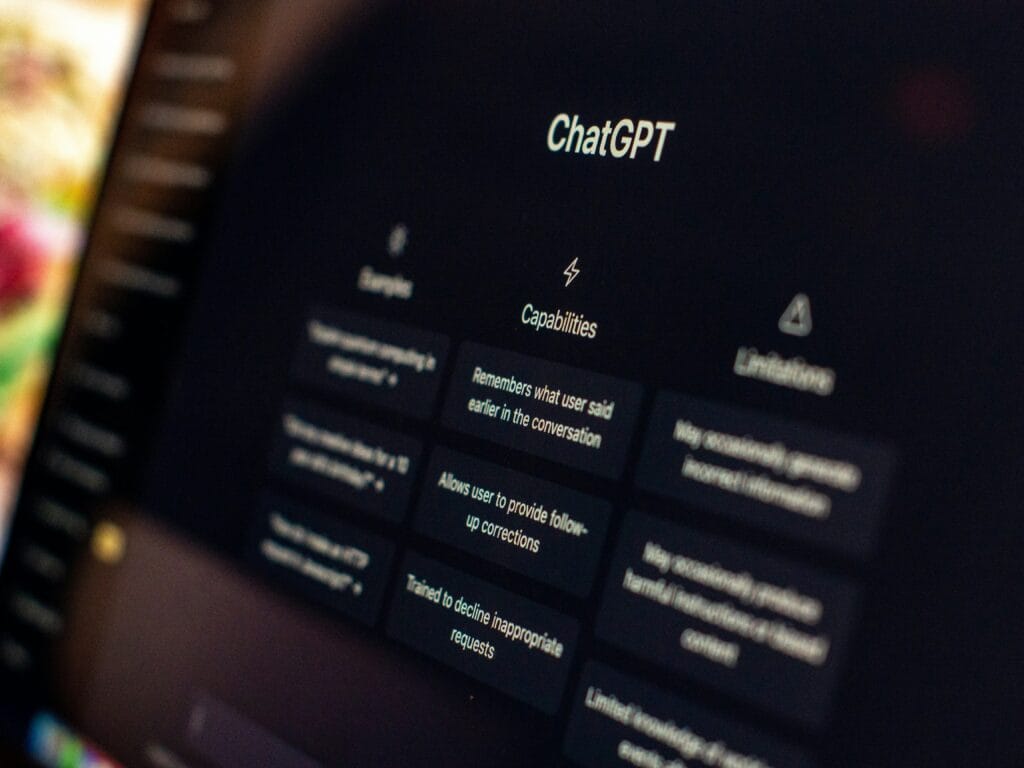
You do not need technical knowledge or a complicated prompt to start using ChatGPT for teaching.
You need one clear task: a short reading, a speaking activity, simpler instructions, or feedback on an existing lesson.
This guide explains which features to use, what to type, and what to check before sharing the result with students.
Start with one activity — not an entire curriculum.
What Can ChatGPT Help You Do?
ChatGPT responds to instructions written in everyday language. You can ask it to draft material, explain an idea, suggest alternatives, and revise its response through conversation. OpenAI’s ChatGPT Capabilities Overview lists the current features and where they are available.
For ESL teachers, useful starting tasks include:
- Drafting a short dialogue
- Creating questions from a supplied passage
- Adapting instructions for beginning learners
- Planning a pair activity
- Suggesting support for mixed-level groups
- Reviewing a lesson for unnecessary teacher talk
Treat the output as a draft. ChatGPT does not automatically know your students, textbook, classroom conditions, or school policies.
Which Feature Should You Use?
| Your task | Feature | How to begin |
|---|---|---|
| Draft or revise teaching material | Text chat | Type your request and paste relevant text |
| Work from an existing document | File attachment, where available | Attach the file and identify the section to use |
| Find current information | Web search, where available | Ask for an online search and source links |
| Rehearse a spoken interaction | Voice conversation, where available | Start a voice session and describe the situation |
Feature availability and controls depend on your app, account, and workspace. You can complete the text-based examples below without voice or file attachments.
Your First Activity: From Request to Classroom Use
Open ChatGPT and start a new conversation. Type a request like this:
Read the response before requesting more material. Ask yourself:
- Does every student have something to say?
- Are the expressions familiar enough?
- Can the activity work with the available materials?
- Is the model dialogue clear and plausible?
Then revise one specific problem:
Once the activity fits, copy it into your usual document editor, check the layout, and prepare the materials.
The requested timing is a planning estimate — not a guarantee of how long your class will need.
A Simple Prompt Formula
A useful teaching prompt includes:
You do not need every detail every time. Include what would change the activity. For example:
A CEFR label alone is not enough. Add what learners already know and what they have not studied.
Two habits matter more than any prompt template: give the relevant context up front, and treat the first response as a draft you refine with follow-up messages. OpenAI’s Prompt engineering best practices for ChatGPT makes the same two points — be clear and specific with context, then review and refine iteratively.
Five Practical Prompts to Try
Replace the bracketed details with information from your class.
1. Draft a Short Reading
Use text chat.
Check the language yourself. Ask whether the questions can actually be answered from the passage.
If you need factual rather than fictional content, provide a reliable source or use web search and verify the information.
2. Adapt a Reading Without Changing the Main Meaning
Paste a text you have permission to adapt.
Compare the versions side by side.
Simplification can accidentally remove a cause, qualification, or important detail. A shorter text is not necessarily an accurate adaptation.
3. Create Different Supports for One Shared Task
Choose supports based on what learners need. You do not have to create three separate lessons.
4. Make Worksheet Instructions Clearer
Check the revised instructions against the actual worksheet.
If the task requires matching, the instructions should not accidentally ask students to write definitions.
5. Review a Lesson for Student Participation
Use the suggestions selectively. More speaking is not automatically better if students have not heard a model or understood the task.
Using File Attachments
You can upload supported documents and ask ChatGPT to summarize, extract, or work with their content. Availability and usage limits depend on your plan and account settings. See OpenAI’s File Uploads FAQ.
This lets you provide an existing lesson or vocabulary document instead of pasting everything into the conversation.
Start by checking that the content was read correctly:
After confirming the list:
For textbook-based tasks, provide the relevant permitted excerpt or your own notes. Naming a book and unit does not establish that ChatGPT has access to the correct edition or exact content.
Using Web Search
Use web search when your lesson depends on current facts, recent events, or sources you need to verify. For example:
Open the source yourself before adapting it. Check the date, content, reading demands, and permissions.
Search citations help you trace claims; they do not remove the need to read the source. OpenAI’s Searching the web with ChatGPT explains how results are cited and how to open the underlying sources.
Using Voice for Rehearsal
Voice conversation is different from dictation. OpenAI describes the distinction plainly: use Voice for a live, back-and-forth conversation, and use Dictation when you want to record a prompt, review the transcription, and send it as text.
On iOS, Android, and the web, OpenAI describes selecting the Voice icon in the message bar or prompt window, allowing microphone access, and beginning to speak. Controls, availability, and desktop behaviour differ by platform and plan — check the ChatGPT Voice guide for your setup.
A teacher-rehearsal prompt might be:
Or practise a situation:
These instructions guide the interaction but do not guarantee perfect behaviour.
Use voice for rehearsal and interaction — not as a validated pronunciation test. A correct transcript is not proof that every sound was pronounced clearly.
Check These Things Before Teaching
A polished-looking worksheet can still contain mistakes. Review:
- Meaning: Are the facts and explanations correct?
- Language: Does the vocabulary fit these learners?
- Task: Do students know what to do?
- Answers: Are the keys accurate, and are alternatives possible?
- Participation: Does the activity give students a meaningful role?
- Practicality: Can you run it with your time, space, and equipment?
Ask ChatGPT to help check a draft, but do not treat its self-check as independent verification.
For grammar uncertainty, consult a reliable reference. For factual content, return to the original source.
Student Privacy and Direct Use
Begin with teacher preparation rather than requiring students to open accounts.
Do not upload identifiable student work, private family messages, recordings, or confidential school documents to an unapproved service. Replacing a name with “Student A” may not remove identifying details from the rest of a document.
Before direct student use, check current age requirements, required permissions, and school-approved access arrangements.
Teacher-led use and independent student use need different planning. A useful preparation tool is not automatically suitable for unsupervised homework.
Do You Need a Paid Plan?
Start by checking whether your existing access supports the task you want to complete.
Do not choose a subscription before identifying a genuine need. Review the current ChatGPT plans, particularly if you want features such as Voice.
This beginner workflow does not require an API or coding setup.
Final Thoughts
Your first useful result does not need to be a complete lesson.
Choose one task, provide the relevant context, review the response, and request a focused revision.
Then teach the activity and note what happened. That classroom evidence — not the appearance of the generated material — should guide your next version.
ChatGPT will not be the right starting point for every task. If you need reading adaptation, model audio, or a structured rubric template, explore the specific features in our guide to AI tools for ESL teachers.
ChatGPT can help prepare the draft. You decide what deserves a place in the lesson.